Account Verification
Step-by-step guide to verifying your iPaymu account in the Sandbox environment.
To fully activate your iPaymu account and start accepting payments, you must complete the verification process. Below is a step-by-step guide on how to verify your account in the Sandbox environment.
Important
The verification process takes approximately 2 working days. Our verification team will test your website or application to ensure the integration flow works correctly, up to the iPaymu Payment Page or generating a Payment Code (transaction capability).
Please ensure your integration is fully functional and seamless before submitting for verification.
Prerequisites
Before starting, ensure you have the following data ready:
- Active Phone Number.
- Valid Email Address.
- ID Card (KTP) (NIK must be 16 digits).
- Selfie Photo with your ID Card.
- Bank Account (Account number and proof of ownership such as passbook or m-banking screenshot).
- Valid Website/Online Store URL that is publicly accessible.
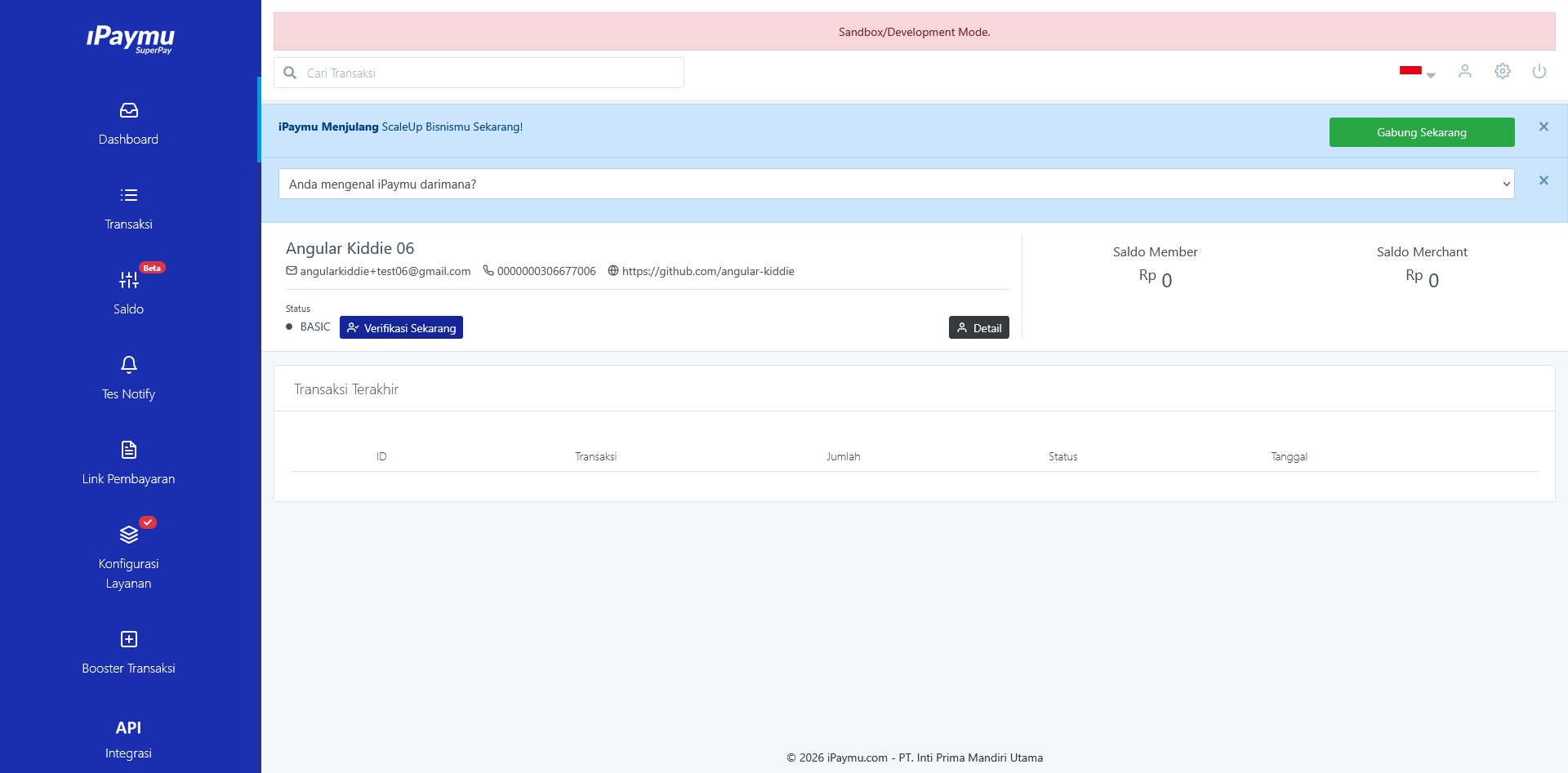
Navigate to Verification Page
After successfully Registering and Logging in to the Dashboard:
- Look for the Verify Now button or menu on the dashboard.
- Or click the "Verification" menu in the sidebar and click "Verify Now".
Step 1: Personal Information
Fill in your personal data completely and correctly according to your ID Card (KTP).
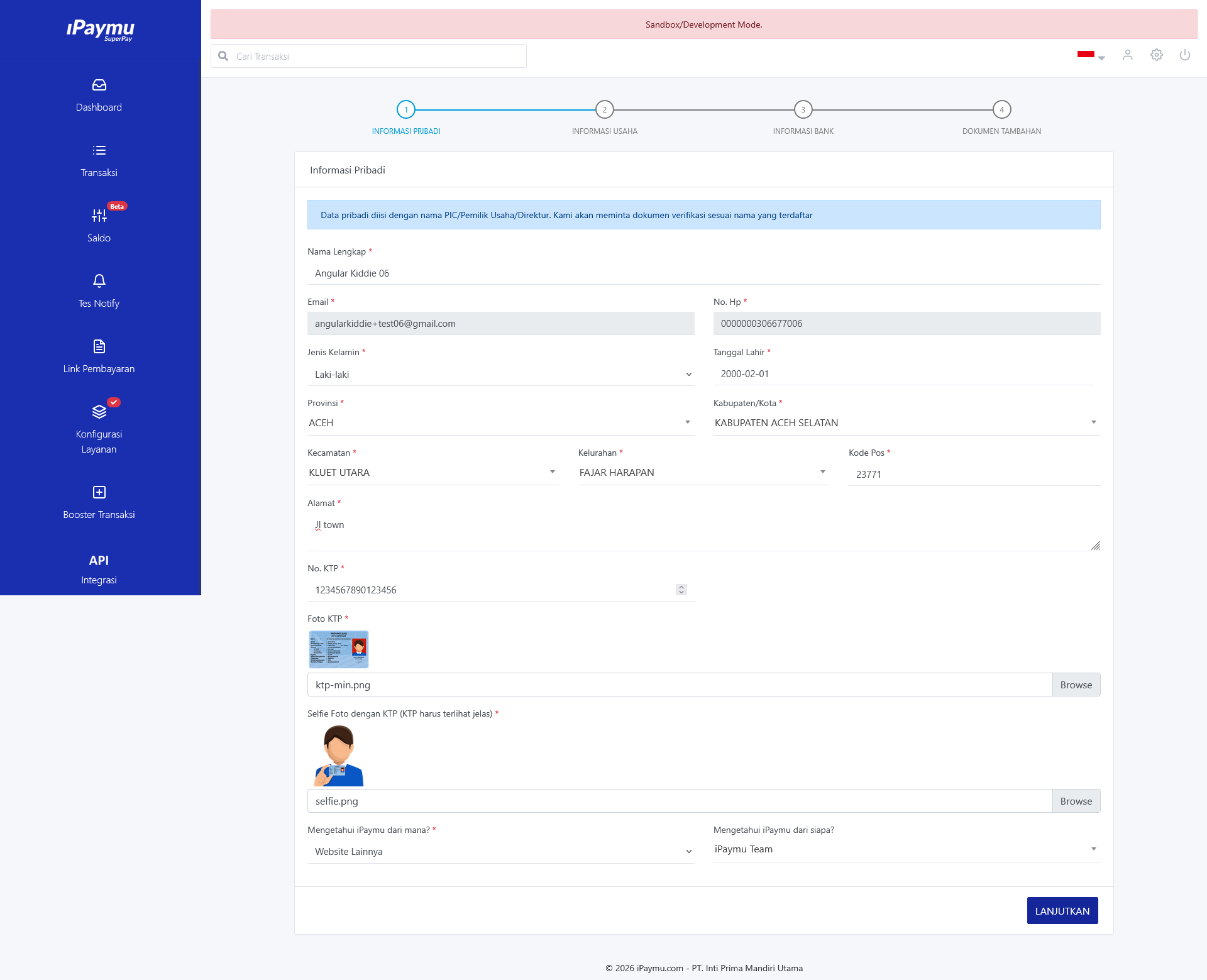
- Full Name: As stated on ID Card.
- Address: Full address required.
- NIK: Must be exactly 16 digits.
Click Next.
Step 2: Business Information
Fill in details about your business or online store.
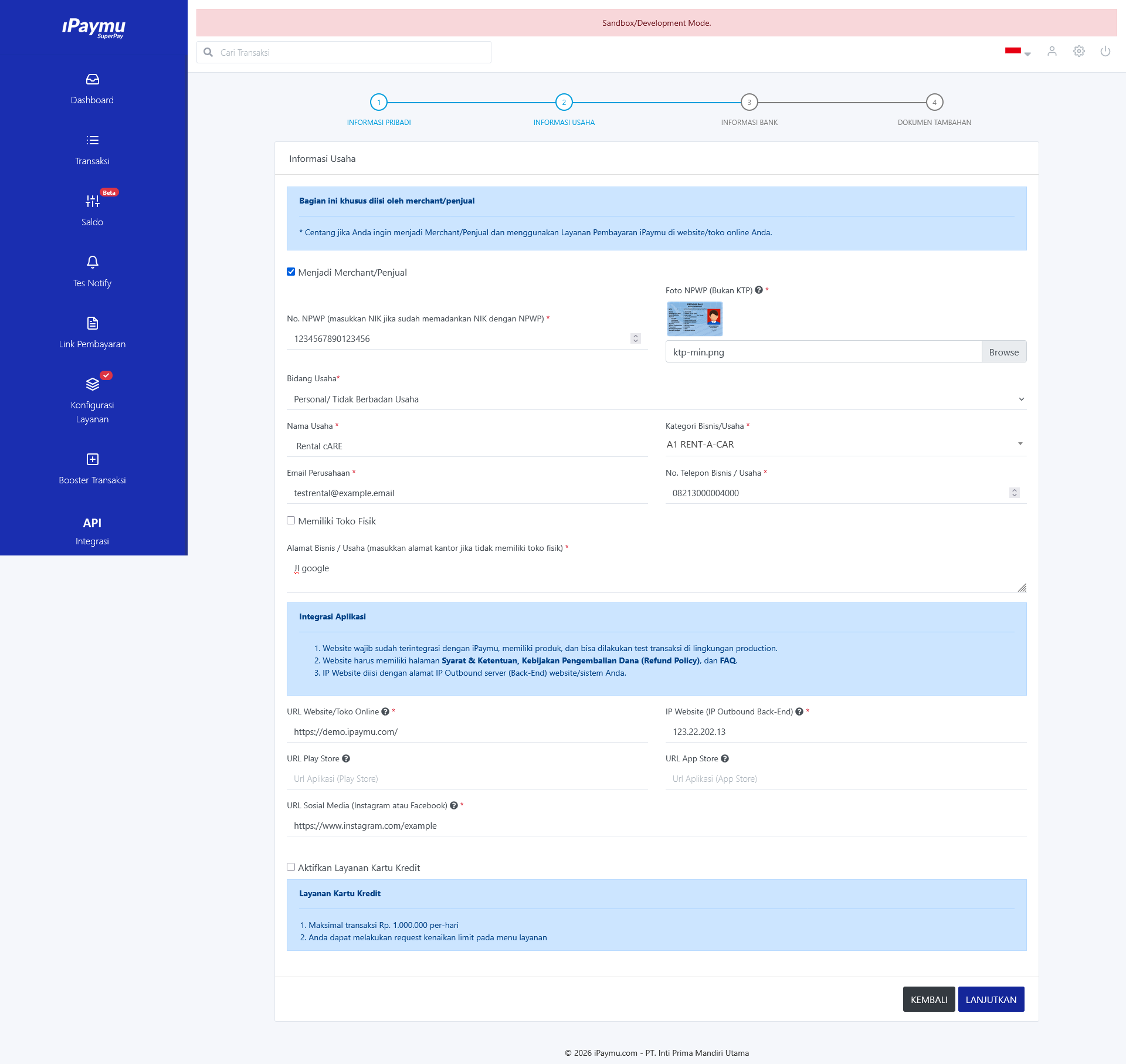
- Business Name: Name of your business or store.
- Website URL: Enter a valid URL for your website or online store (Must be correct).
⚠
The Website URL must be valid and accessible. If you don't have your own domain yet, ensure the entered URL is a legitimate URL.
- Document Upload:
- For Selfie, you can use a sample selfie image.
- For other uploads (ID Card, NPWP if available), use an image file (e.g., ktp-min.png).
Click Next.
Step 3: Bank Information
Enter the bank account details for fund settlement.
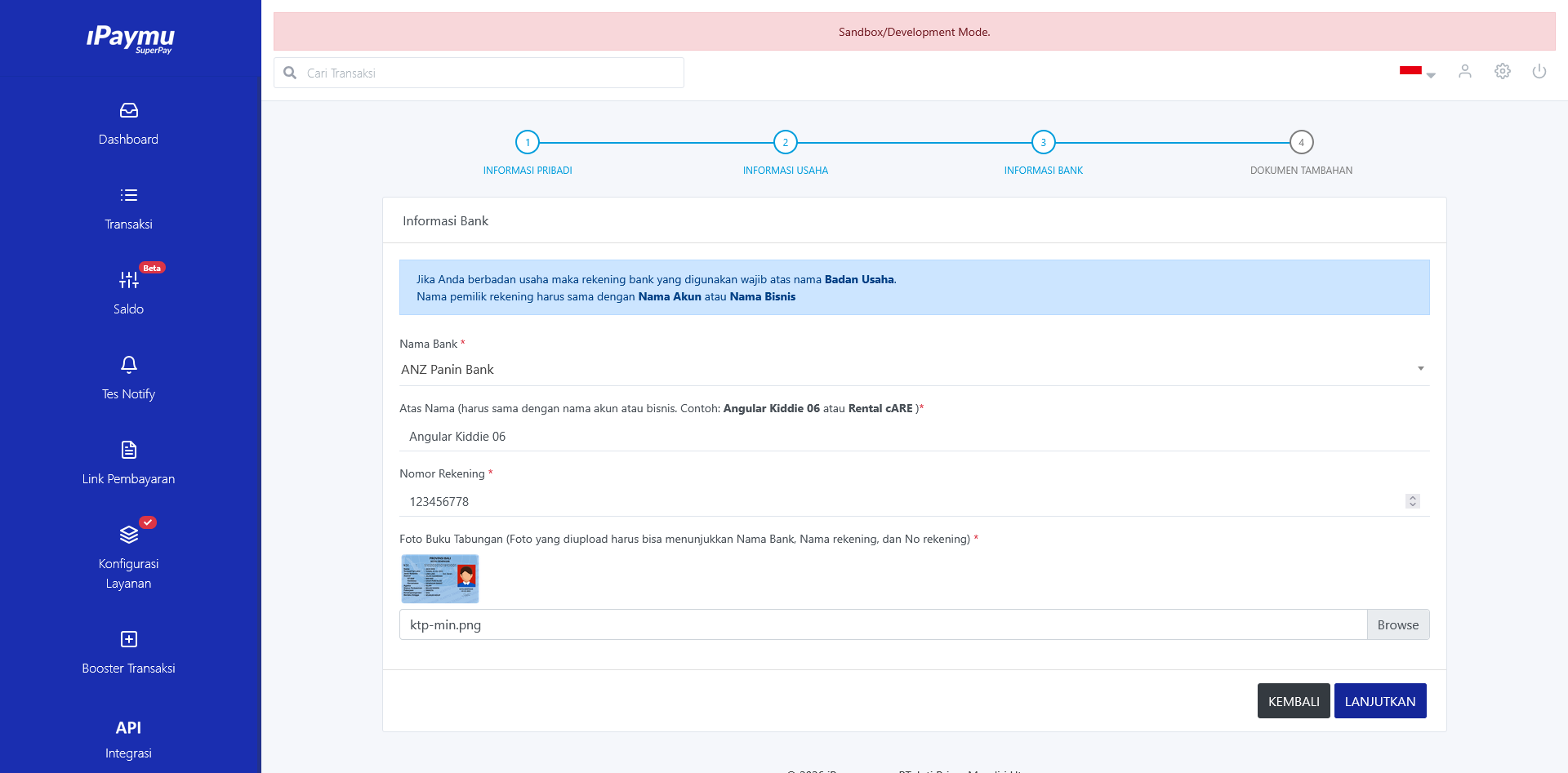
- Bank Name: Select your bank.
- Account Number: Enter your account number.
- Account Holder Name: Must match the registered name.
- Supporting Document:
- If you do not have a physical passbook, you can upload a screenshot of account mutation or the profile page from your m-banking app that shows the account number and owner name.
Click Next.
Step 4: Additional Documents
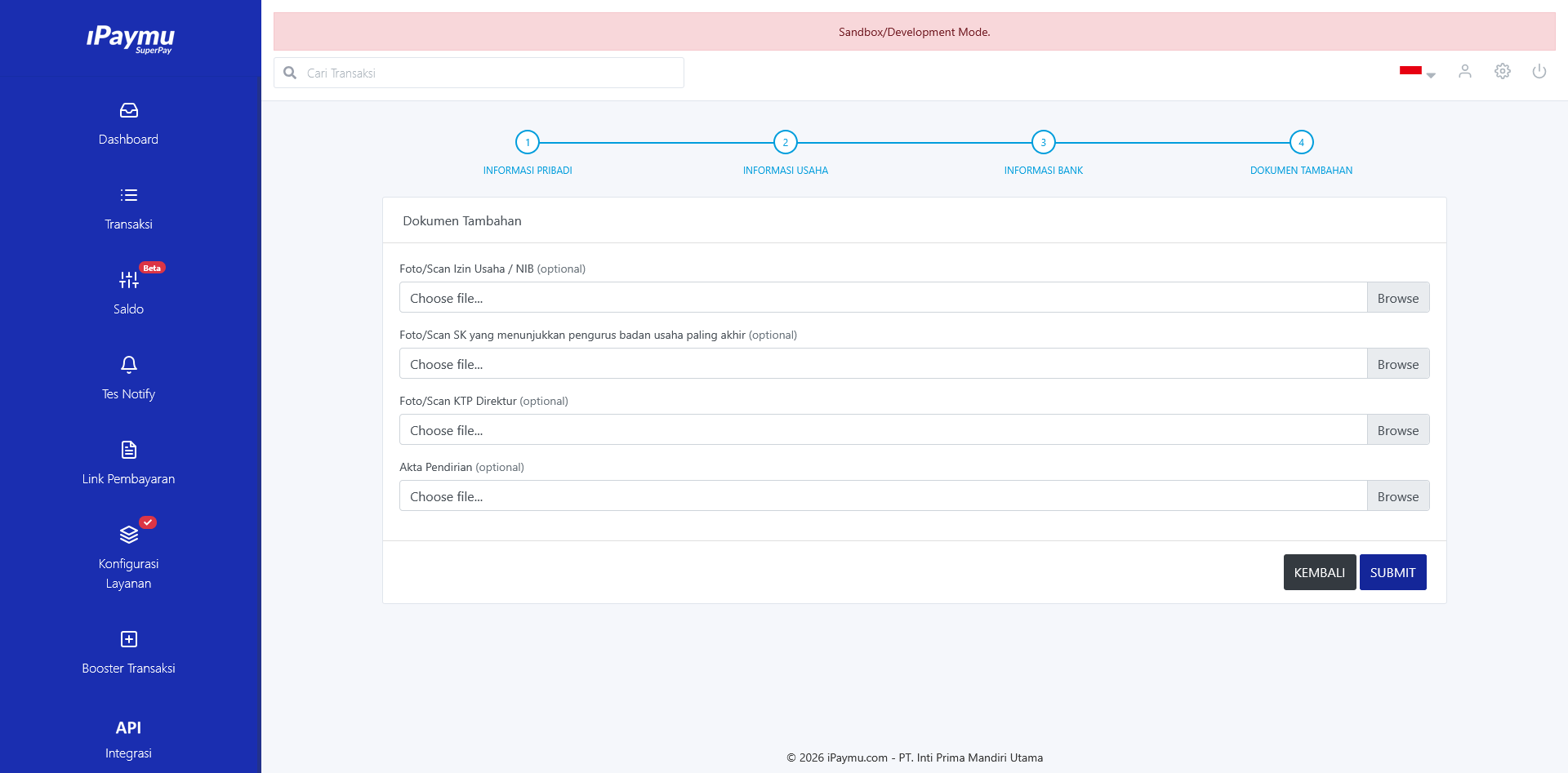
Upload any additional documents if requested, or complete the process if everything is set.
Important Notes
Domain & IP Validation
Ensure your website is ready. For further configuration regarding IP and domain whitelisting, you can access the Integration menu:
- Domain Validation: Sandbox / Production
- IP Validation: Sandbox / Production
Static IP
It is recommended to use a Static IP for your server to ensure transaction security and stability. If you do not have a Static IP, please contact our support team at support@ipaymu.com to consult for alternative solutions.
Common Errors
- NIK less than 16 digits: Ensure the NIK entered is exactly 16 numbers.
- Blurry Photos: Ensure ID and Selfie are clearly readable by the verification system.
- Mismatched Account Name: The name on the bank account must match the account verification name.