Adding Domains and IP Addresses
Resolve Invalid IP/Domain errors by registering your server IP and domain in the iPaymu dashboard.
API ENVIRONMENT
Base URL
https://sandbox.ipaymu.com/api/v2Use credentials from the selected environment. Sandbox and Production credentials are separate.
When your integration returns Invalid IP or Invalid Domain, the issue usually relates to the integration's IP or domain and the configuration registered in the iPaymu dashboard. Use this troubleshooting guide to check and update that configuration.
Error "Invalid IP"
The IP address used by your server to access the iPaymu API must be registered in the iPaymu dashboard.
Use the IP of the server making requests
Register the IP address of the server that sends requests to iPaymu, rather than simply the IP address of the device used to open the dashboard.
2. Open API Integrasi
Select API Integrasi in the dashboard.
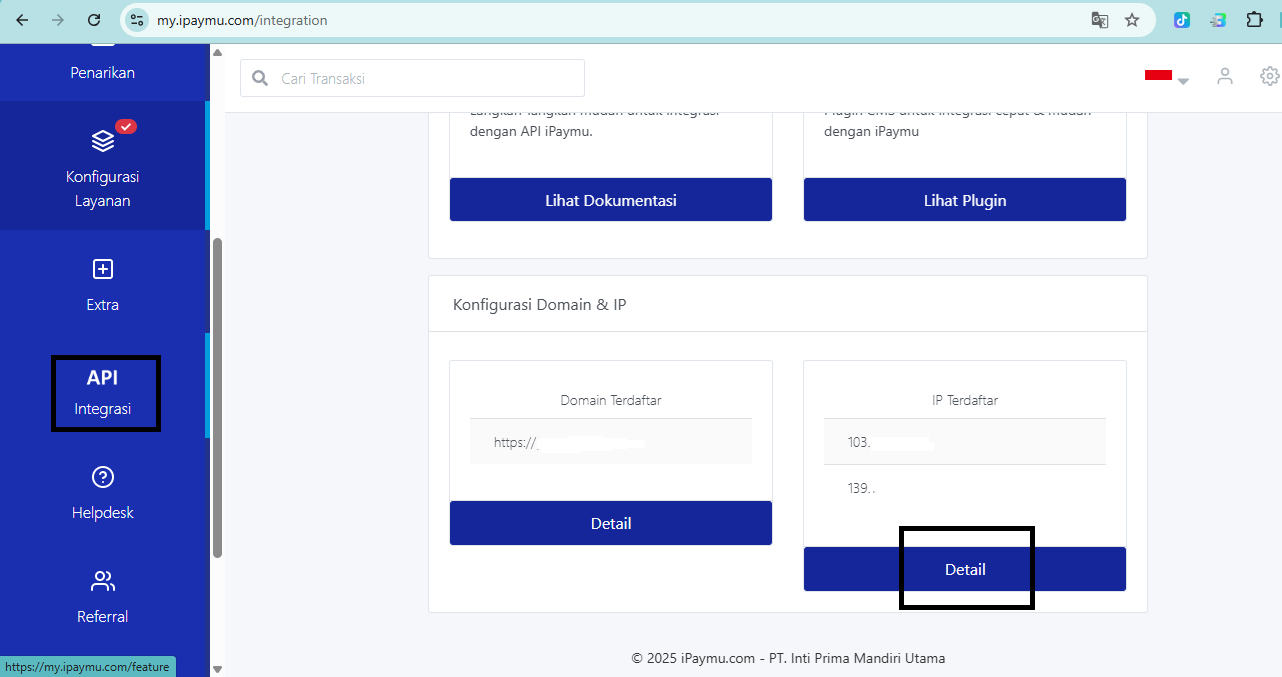
4. Confirm a static IP
Make sure the server IP you are registering is a static IP.
5. Select IP Baru
Click IP Baru to open the form for adding an IP address.
6. Enter the server IP
Enter the IP address of the server or website that actually sends requests to the iPaymu API.
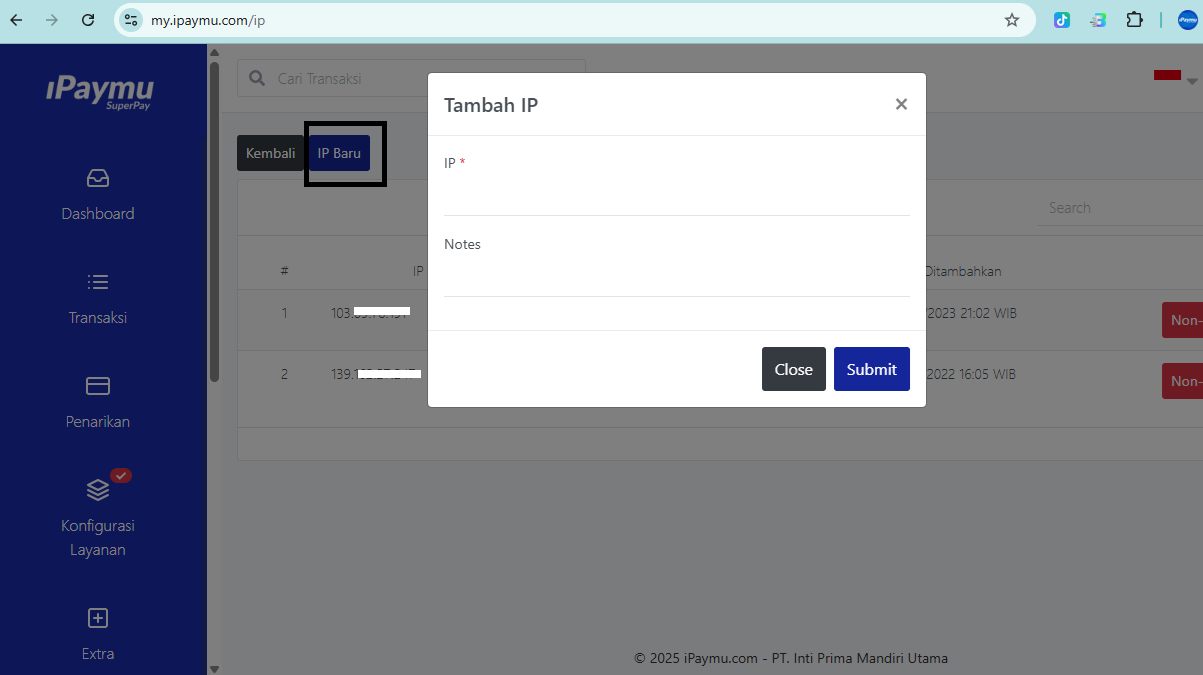
7. Submit
Click Submit to add the IP address.
8. Retry the request
After the IP address has been added successfully, send the API request again.
Error "Invalid Domain"
Register your domain in the iPaymu dashboard and check that it matches the callback domain used by your integration.
Check the callback domain
If you receive an 'Invalid Domain' response, check that the callback domain matches the domain registered in the iPaymu dashboard.
2. Open API Integrasi
Select API Integrasi in the dashboard.
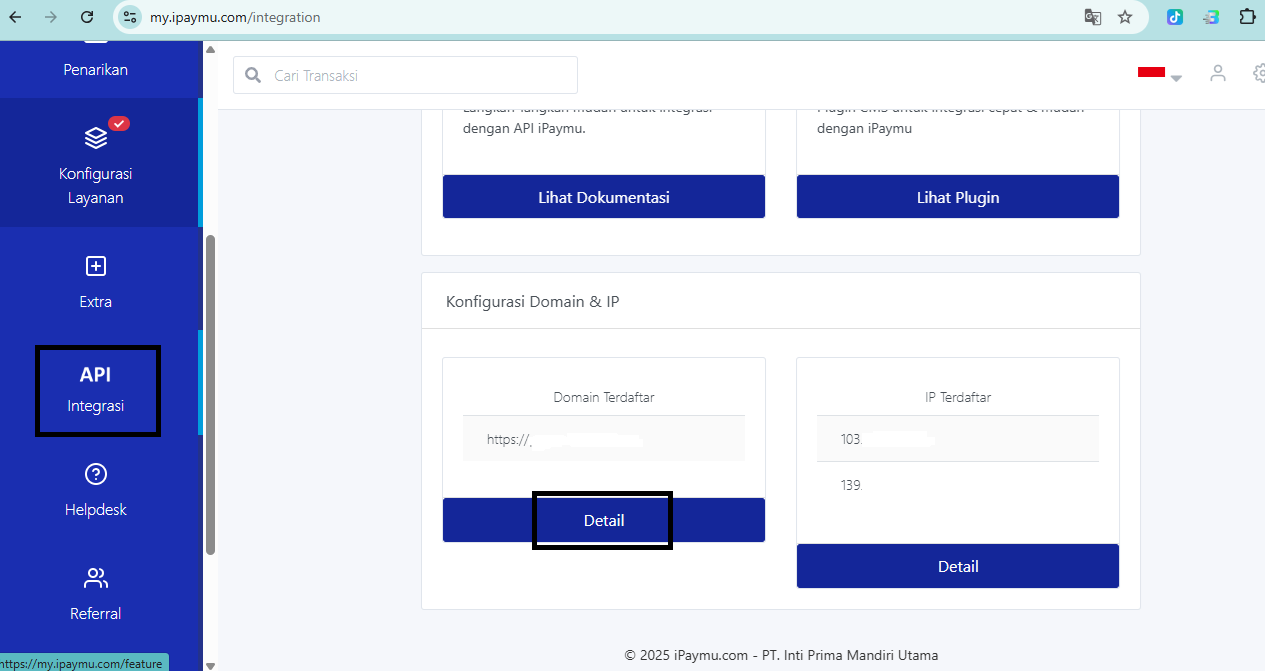
4. Register the domain
Follow the domain registration process available in the dashboard.
5. Check the callback
Make sure the callback used by your integration comes from the same domain as the registered domain.
6. Check additional domains
If you want to add a second or additional domain, make sure it uses the same business model.
7. Domain verification
The iPaymu team will verify the registered domain.
After updating the configuration
- IP: retry the API request after the IP address has been added successfully.
- Domain: make sure the domain and callback match, then wait for verification by the iPaymu team if required.
See IP & Domain Validation for integration configuration guidance.